Why Wireless Security Cameras Drop Feed and How to Fix It
The five most common reasons wireless home security cameras lose their feed are weak signal, crowded Wi-Fi channels, physical barriers, router overload, and firmware or model compatibility issues. The camera can still look like the broken part because the error appears in the app. One alert opens normally, and the next sits on a spinning live view or shows the camera offline. The checks below move from the signal path to band choice, placement, router load, firmware, and model compatibility before replacement becomes the next reasonable step.
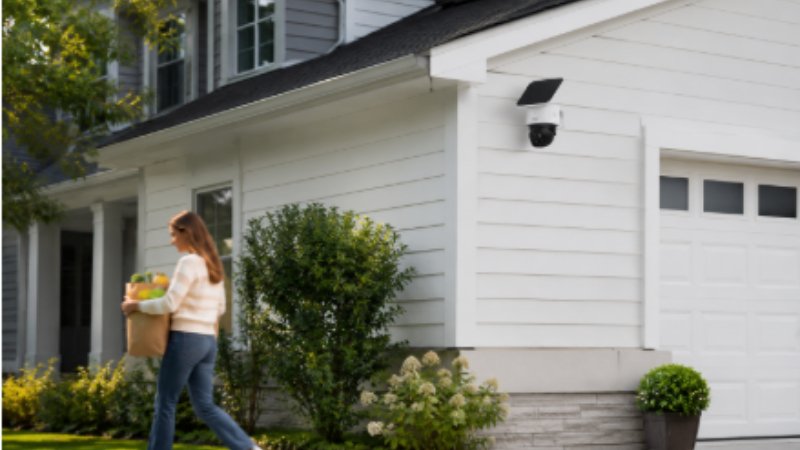
Suburban home scene with a woman carrying groceries and a security camera mounted high on the wall.
Table of Contents
- Start with the signal path before replacing the camera
- Choose the right Wi-Fi band and channel
- Check walls, distance, and camera placement
- Match router capacity to camera load
- Check model band compatibility before replacing hardware
- Conclusion
Check your wireless security camera’s band before replacing it
A dropped feed looks like a camera problem because the error appears in the camera app. That is a little misleading. The camera may wake up, try to send live video, wait for the router, and then give up because the wireless path is barely holding together.
Start with one plain test. Does it fail everywhere, or only in that one mounted spot? Bring the camera indoors and leave it near the router for a few hours. Open live view a few times, trigger a motion clip, and check whether the device stays online. If it behaves there, the camera is probably not the weak link. The problem is probably the outdoor path.
If the indoor test passes, the next few checks narrow the problem without rebuilding the whole setup.
- Connection strength. One bar may be enough for a status check and still too weak for live view.
- Band choice. A garage camera, an indoor camera, and a hub-linked camera may not belong on the same path.
- Channel load. Neighboring routers can make a camera beside the house behave like one at the end of the yard.
- Physical barriers. Brick, stucco, metal doors, Low-E glass, and exterior insulation skew the results more than people expect.
- Router capacity. Web browsing may look fine while camera uploads lag.
That order saves guesswork. A new camera placed behind the same stucco wall, on the same crowded channel, will often inherit the same problem.
Choose the right Wi-Fi band and channel
Most home routers broadcast at least two Wi-Fi bands. The 2.4 GHz band usually travels farther and handles walls better, but it is crowded. The 5 GHz band can feel cleaner near the router, yet distance and exterior walls weaken it sooner. That is why a camera that pairs easily on the kitchen counter may struggle once it moves above the garage.
Even the right band can fail if the channel is crowded. On 2.4 GHz, neighboring routers, baby monitors, Bluetooth devices, and older smart home gear may be sharing the same airspace. Channels 1, 6, and 11 are the usual starting points because they avoid the worst overlap, but a quick scan near the camera tells you more than the router screen in the hallway.
Make one small change at a time. Separate the SSIDs if the camera keeps jumping to a weak band. Pick a cleaner 2.4 GHz channel if auto selection lands on a crowded channel. Move phones, tablets, and TVs to 5 GHz when possible, so cameras and older devices get more room on 2.4 GHz. Watch the camera for a day before changing anything else. If you are still shopping, check how each eufy security camera lists Wi-Fi support before you mount one on a far exterior wall.
Check walls, distance, and camera placement
Placement is the next thing to test after band and channel. The simplest clue is a camera that works indoors but fails outdoors. If it streams well on the kitchen counter and drops above the garage, the camera may not be the issue. The signal path changed, and that pattern is common on exterior walls.
Start with the wall between the router and the camera. Interior drywall is usually easy on Wi-Fi. Exterior materials are not. Brick, concrete, stucco with metal lath, metal garage doors, foil-backed insulation, and Low-E glass can weaken or reflect the signal. Under an eave, gutters, flashing, and metal downspouts can make the path worse.
Use a short placement test before replacing hardware.
- Move the camera a few feet left or right, then test the live view again.
- Rotate the antenna or camera body if the model allows it.
- Keep the camera away from metal trim, gutters, downspouts, and large exterior fixtures.
- Move a mesh node closer to the exterior wall and keep it open, not inside a cabinet.
- Test from the nearest window to separate a wall problem from a distance problem.
Placement problems can also show up at certain times. If the feed drops mostly at night, during rain, or after a cold snap, look at power and placement together. Wet walls, cold batteries, and a camera angled away from the router can turn a borderline signal into a failed one. Sometimes the less elegant mounting spot is the one that works.
Match router capacity to camera load
A home wireless camera system does not use the network like a phone. Phones usually download in bursts, then go quiet. Cameras keep asking to upload bandwidth whenever they upload motion clips, wake for live view, run status checks, or push alerts. If that happens while the rest of the house is streaming, gaming, or on video calls, an older router may start dropping the devices that need steady attention.
The timing tells you whether this is a load problem. A camera that fails only from one exterior wall still points back to placement. Feeds that drop mostly in the evening, when everyone is online, point to router capacity instead. If every camera goes offline at once, stop looking at one bracket on one wall. Check the router, internet connection, power, and any shared hub first.
Mesh can help when several wireless home security cameras are spread across the property, but only if the nodes have a strong path back to the router. Put a node halfway to the weak area, not at the edge of failure. A mesh node repeating a weak signal is still repeating a weak signal. If evening congestion is the real issue, fewer direct Wi-Fi cameras, better router placement, or a hub-supported setup may matter more than replacing one camera.
Check model band compatibility before replacing hardware
Check the model only after the network path has been tested. The order matters: router health, channel interference, signal barriers, device load, then compatibility. Otherwise, it is easy to blame the camera for a router or placement problem.
Model support can still be the missing piece. Not every camera or doorbell supports 5 GHz, and some systems connect through HomeBase or another hub rather than behaving like a direct Wi-Fi camera. A device that only supports 2.4 GHz may be perfectly normal for an exterior wall, while a dual-band model may still work better on 2.4 GHz if it sits far from the router.
Before replacing anything, check the product specs and app settings:
- Supported bands. Confirm whether the model supports 2.4 GHz only or both 2.4 GHz and 5 GHz.
- Hub behavior. Check whether the camera connects to Wi-Fi directly or through a HomeBase-style hub.
- Firmware status. Open the camera app and check for firmware update prompts before assuming the hardware has failed.
- Restart test. Restart the camera and router, then test live view and motion clips again before changing the mounting spot.
- Placement limits. Match the model to the real weak point, such as distance, walls, router load, or storage needs.
If the diagnosis points to coverage angle, storage, and fewer battery visits rather than a simple band setting, the eufy SoloCam S340 + eufy HomeBase™ S380 is a practical comparison point. Its 3K dual-camera view with 8x zoom helps when a driveway needs both a wide scene and a closer look at people, vehicles, or packages. The 360-degree coverage can reduce blind spots in a side yard where motion comes from more than one direction. Solar power helps when the mounting spot gets enough light, and local storage through HomeBase™ S380 means no subscription fee is required. To compare mounting styles, outdoor form factors, and the best wireless home cameras, review the eufy wireless security cameras after the weak point is clear.
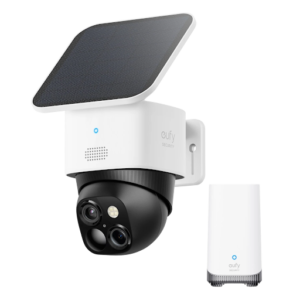
eufy SoloCam S340 + eufy HomeBase™ S380
Conclusion
Most feed drops leave a trail if you test them in the right order. A camera that works beside the router but fails above the garage is telling a different story from one that drops every evening when the whole house is online. Start with a short indoor test, then look at channel noise, walls, distance, router load, and band support. Some homes only need a cleaner 2.4 GHz channel or a slightly different mounting spot. Others need stronger coverage or a hub-supported setup. Replace the camera only after the signal path has had a fair test.